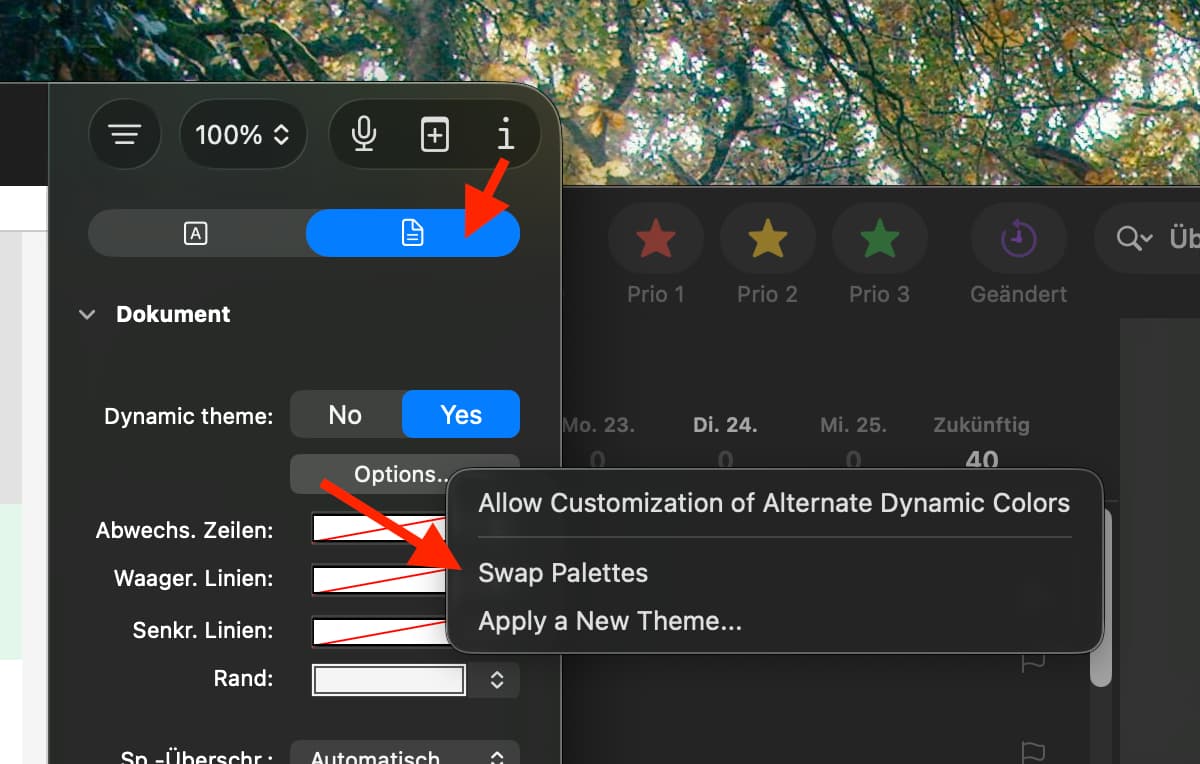
I upgraded to OmniOutliner 6 and now when I create new documents from the basic template it’s doing something cute with dark mode and creating them black with white text. But for some reason I have another document that is white with black text, and I can’t figure how to make the former documents like this latter one.
I go to the Inspector > Document and say Dynamic Theme: No. Then I select “Whole Document” in the sidebar, then Inspector > Selection Style > Paragraph > Background: White. And it turns like a mid gray color. Then I try: Font: Black – it just ignores me and leaves it white.
This may just be a bug. I can set the text to purple or green and it works, but when I set it to black using the drop down list, it just sets it to white. If I click the color box for the font and manually make a black with the color picker, it works.
When you choose a template for a new document, you have the ability to choose whether the new document should have a Dynamic palette, or whether it should use a fixed Light or Dark palette. In the top right corner of the “Choose a Template” dialog, you should see a palette icon where you can make this choice. (All of your templates will immediately redraw to reflect your choice.)
You can also get there by turning off Dynamic Theme in the Inspector and assigning fixed colors throughout your document. But it’s a little easier to start there in the first place.
One bit of behavior was confusing me when I switched the dynamic theme to “No” and back to “Yes”. I don’t know if it’s intended behavior or not. It appears that some named styles move to being directly applied (not sure the term for that), which can then hide further changes to the named style.
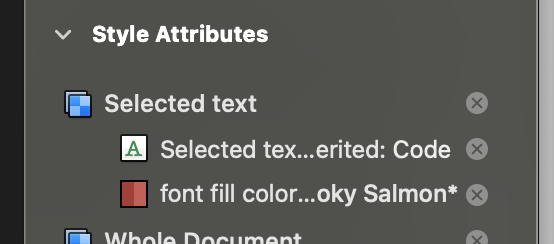
For example, I create a named style “Code” and give it a red color and a monospace font. I select some text and then check this “Code” style. As expected, the selected text turns red and monospace. I go to “dynamic: no”, then “dynamic: yes” again, and then change the “Code” style to be, say, green. Unexpectedly, the places it was applied stay red. If I go into the style inspector I can see it now has the color directly applied:
That’s not how we intend for this to work; thank you for letting us know! There’s a lot of new code involved in supporting dynamic themes. We’ll investigate.
Here’s a little more background on how dynamic themes are intended to work:
When using a dynamic theme, each color attribute gets two values: one that is used for the light palette, and one that’s used for the dark palette. The initial color assignment is used for whatever palette was active when it was chosen; the alternate color is dynamically generated, attempting to preserve the hue and saturation while inverting the brightness.
Swapping palettes switches which one is currently being used, so advanced users can choose a color value to be used in the other palette mode. This is useful for things like the Solarized template (which uses Ethan Schoonover’s Solarized colors), where the theme’s dark background has a blue hue while the light background has a yellow hue—alternates that the automatic brightness-inversion algorithm wouldn’t pick on its own.
Turning off the dynamic theme fixes the active palette in place so that it no longer switches automatically based on whether your device is in light/dark mode. This can affect the way colors are archived, since color attributes no longer need two independent values.
But though turning dynamic themes on and off does affect the way color attributes are stored, the intent is that those color attributes should still be applied to exactly the same targets as they were before. The only change should be to the values within those attributes.