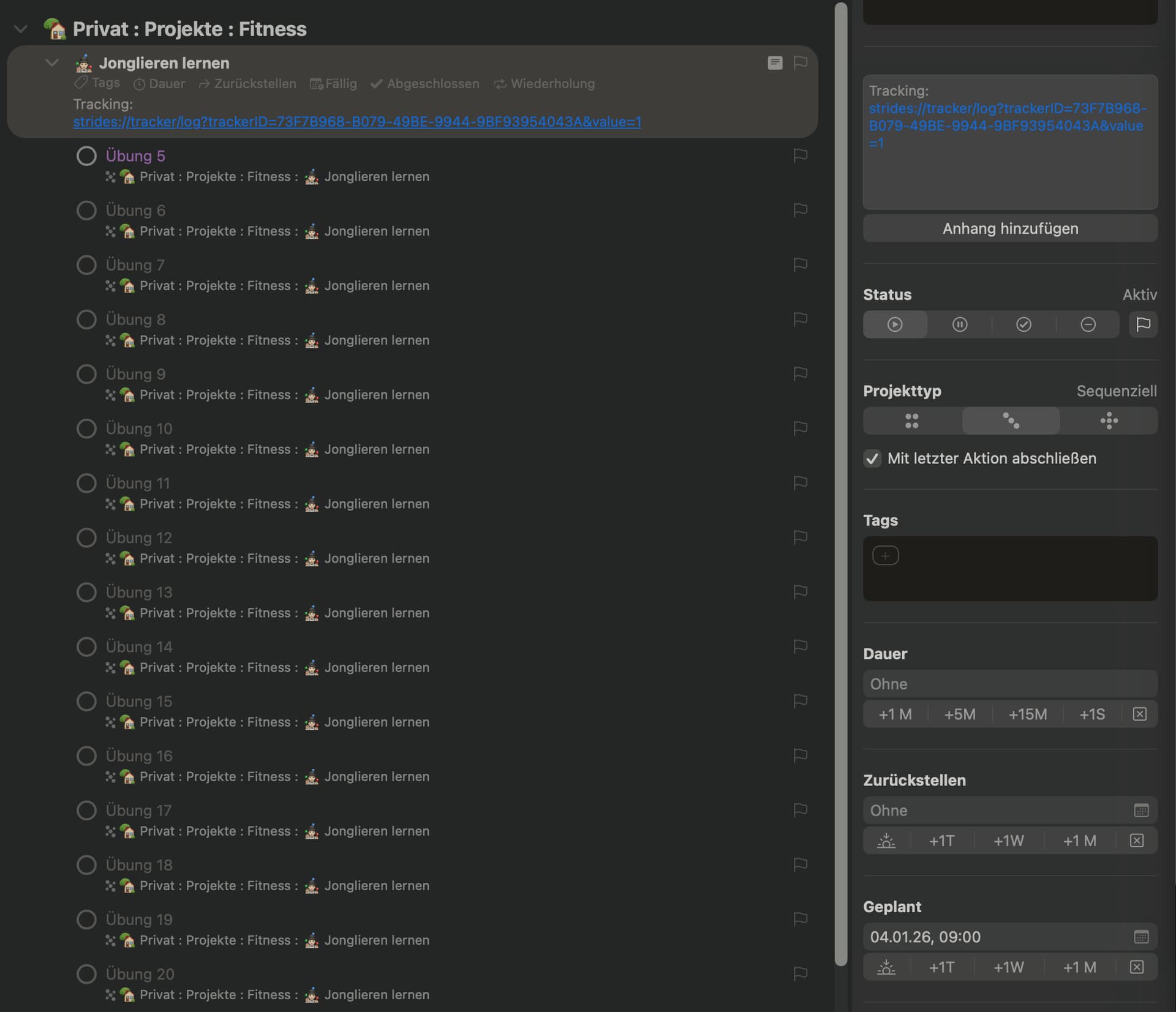
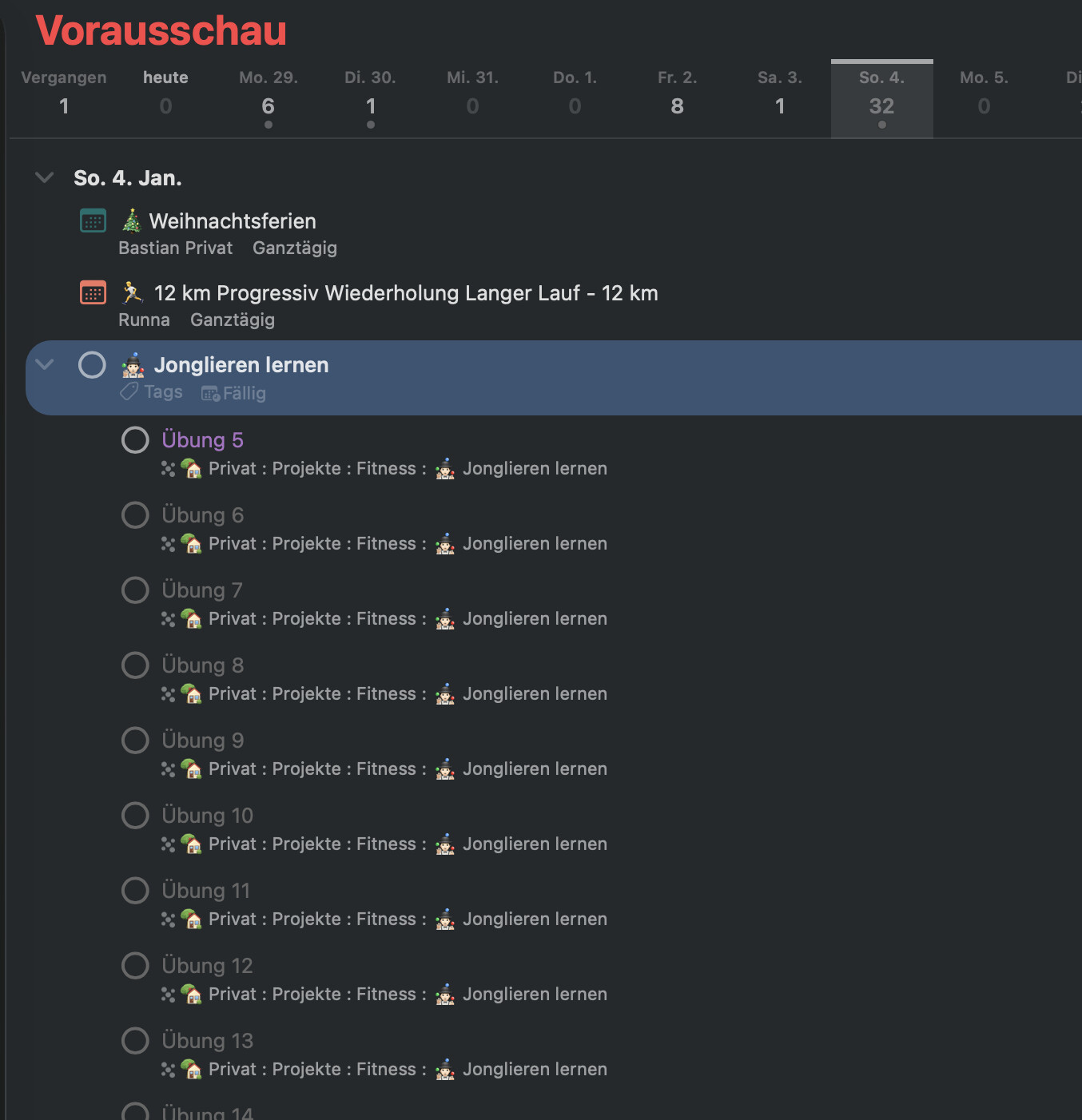
I’m currently working on new Habits and want to pick up a new one, which I want to do every Sunday. The Habit includes multiple Exercises where I want to finish one every week until i did all 35 of them.
So the question:
Without too much manual work, how can I see just the First Available Entry (Übung 5 in this Case), and when I check it, it should be gone until next Sunday, so that It shows Übung 6 then. I don’t want to manually enter the Project after every completion and set a plandate for next next task again.
Have a project with a repeating action “complete next WHATEVER” which is set to repeat every Sunday for 35 weeks (or set an end date) don’t set the project to repeat.
Then in that case the other thing I’m aware of is to use Taskpaper format to import your actions which you can do with maths related to the project due date.
But to be honest though, if you’re only completing this project once, it’s as quick to set your due dates on each action when you create the project.
I don’t do scripting in OF so don’t know if that’s an option.
Can you just not add the various exercises as a note within one repeating task?
Alternatively have a repeating task to visit that project every Sunday and just remove all dates from the project itself.
The only way to display only the next task (“Übung 5”) without the subsequent “übungen” is to leverage the fact that it, uniquely among them, is “available”. So you either need to work from the Available perspective, or modify the Forecast perspective to only show “available” and not “remaining” items, or create a custom perspective that does this if you don’t want to mess with your Forecast perspective.
Then one option would be to set the “Jonglieren lernen” project to repeat every 1 week, regularly, on a Sunday, based on defer date and view it in one of these perspectives. It will only show Übung 5. Then on Sunday mark both Ubung 5 and the Jonglieren Lernen project as done. A replicate project with Ubung 6 available will then be created with a defer date of the following Sunday.
I tried your approach, but the problem is, I can’t find a way to set the forecast perspective to only available tasks. This works on the Projects view, but Forecast just doesn’t have the option. Such a option would solve my problem.
Yes my error sorry — I realised afterward you can’t edit the Forecast perspective directly. You could however either work out of the Available perspective or create a custom perspective to suit your preferences
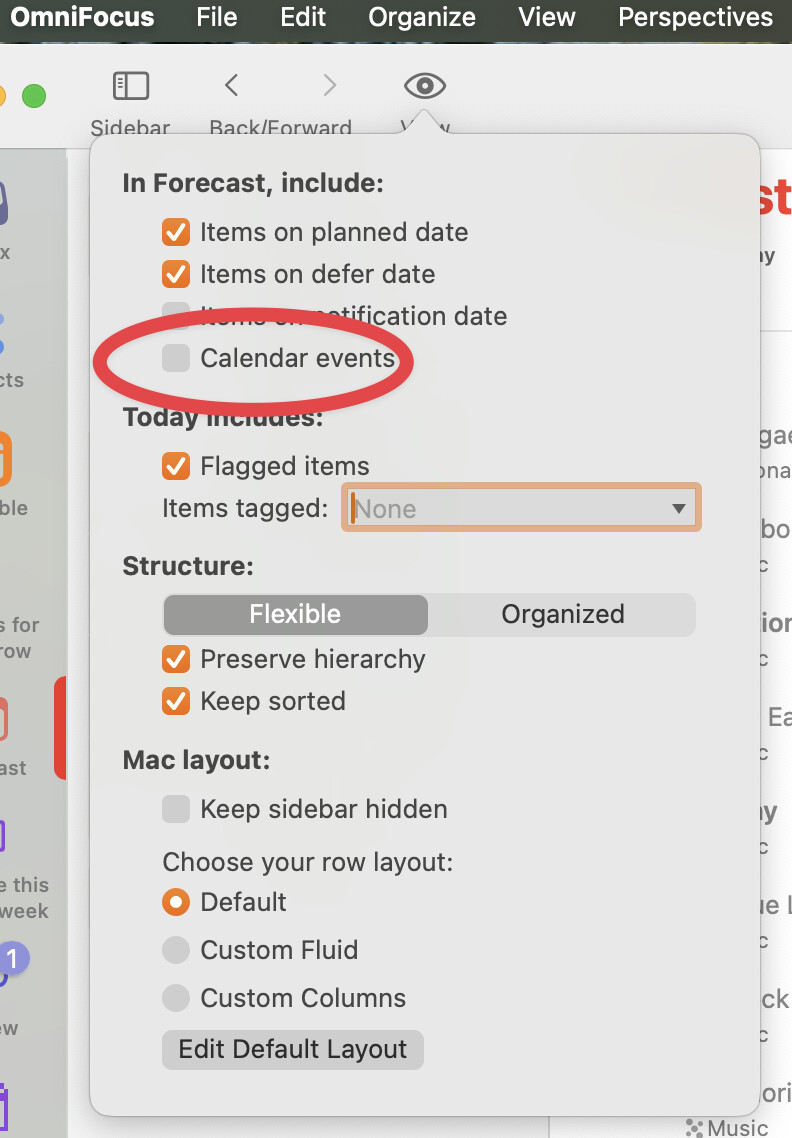
Yes, in Forecast. But there I can’t filter for Available. So you recommended using a perspective, and I just said that this is not feasible because of the missing calendar. :-) So no solution here, but thanks again for helping.
There are just little things I miss from Todoist, but all of them are somehow related to calendars. :-)