I’d love to be able to process my Inbox in a way that would allow me to add tasks directly to their subtask heading within the project list. Adding it to the project and then having to go back and make sure it’s under the right heading is a bit of a pain. Does anyone have any suggestions to do this? Thanks!
One way to solve your problem is to use split screen (2 screen with Omnifocus). This allows you to easily drag tasks from your inbox on the left screen, for example, to any location within a selected project on the right screen.
Split screen makes using Omnifocus so much easier for me. I use split screen extensively with iCal for my daily planning. I really enjoy organizing my day with it.
3 Likes
Do you think just the right „heading“ (action group) is sufficient? The order within the action group is not relevant?
If you do more “complex” task entry frequently, it’s way easier to just use OF’s extended taskpaper syntax then paste it where you want it. You can quickly and trivially create rather complex “projects” and “action groups”. Getting things into OF isn’t the easiest nor most sensible thing.
But if you learn just the taskpaper basics, it becomes a great front-end and inventory system for that method of entry.
You can use any text editor with the guide below. Some text editors have some support for taskpaper explicitly, but aren’t necessary unless you do a lot of taskpaper drafting.
https://support.omnigroup.com/omnifocus-taskpaper-reference/
EDIT: I looked at the reference it doesn’t make it explicit how well this can work for more complex entry. If you would like an example (this seems like something you would like to do) let me know and I’ll make one.
2 Likes
This seems like it would work great, but I’m having trouble figuring out how to do split screen with the same app on both sides. I’ll have to google. Thanks!
1 Like
Right. I don’t care about the order of the tasks in the action group. I’d just like to be able to place a new task into the action group from the Inbox. Right now, they end up at the bottom of the project list when the action group is at the top. Even if the group was at the bottom of the list, the task still would not appear in the group unless I go there and drag it.
Yes, please. I would appreciate an example.
Oh you do realize you can use all the row motions in the inbox? If I understand your core problem, you can just add whatever you want to the inbox. A new task will be entered underneath whatever task you are on. You can then use the row motions to indent, outdent, reorder, etc. as you wish. You can then send the action group to the appropriate project.
I’ll mock up a taskpaper example later.
Thanks!
And close. The action groups already exists within their respective projects, and sometimes I want to add another to a specific group. And of course, action group headings aren’t shown as an option in the inspector.
Got it! Yeah this is one of the many odd decisions / points of neglect by OG. If subprojects are not formal entities, then action groups should be and they are. At a minimum, there should be a toggle to allow action groups to appear as headings for refiling rows.
There are many head-scratchers to me in OF, where OG has the table set for a legit “power” task management system and then don’t serve the food. Instead they concentrate on minimally useful new features, likely due to requests by users who saw something shiny in another task manager.
Due to the above, when I use OF, I just avoid action groups. Everything is a project. I’ve worked a lot on very complex legitimate projects (which would fall out of scope for OF) with a relative flat organization system, so I can avoid this point of failure fairly well. Hell, until I had to share some of my hard drive with my wife, I had no folders for files I use. Or very few.
But yeah, starting in the inbox, then trying to refile a row to an already existing action group heading would be beyond frustrating. If this were a common thing I needed to do, I would create a script to do this.
Sorry for wasting your time misunderstanding your use case.
1 Like
Working with two windows is quite easy to set up.
- Start Omnifocus.
- Make sure that the window fills the entire screen and that the three dots in the upper left corner (red, yellow, green) are still visible.
- Then click on New Window in the File menu. This will open a second window above the first one with exactly the same layout.
- Now move the mouse exactly to the green check mark in the upper left corner of the window, and the “Full Screen” option will appear below it. Move the mouse without clicking on “Full Screen,” then on the right arrow, and then select which half of the screen (left or right) the window will be fixed to.
- You will then see all open windows on the right. Select the second Omnifocus window with a click.
- You now have two windows between which you can drag and drop tasks and projects.
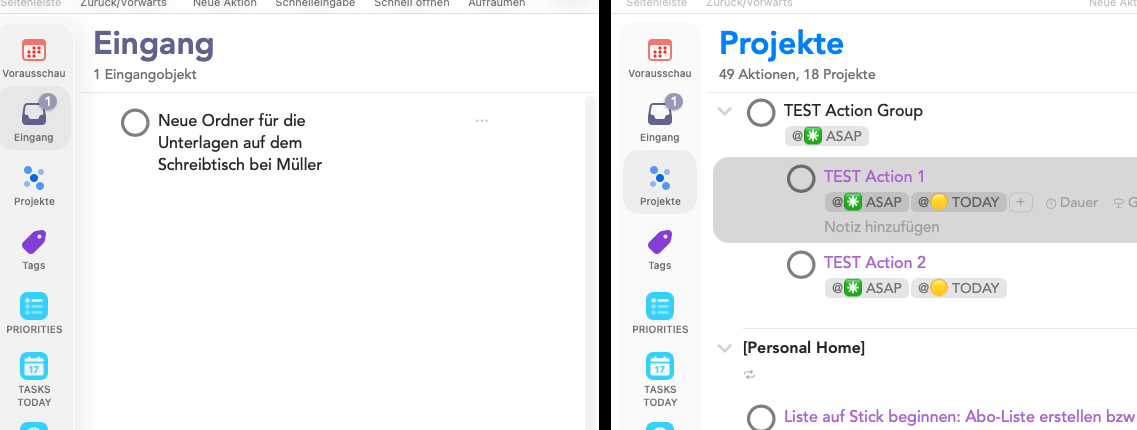
4 Likes
@ernaatkins Have a look at the first plugin listed on this page by @kaitlin : April-June 2022 Plug-In Update Round-Up – Kaitlin Salzke
Just tested it. Could be a solution for you.
1 Like
Thank you! I learned something new :)
No problem at all. I appreciate your willingness to help!
This worked perfectly, thank you!
