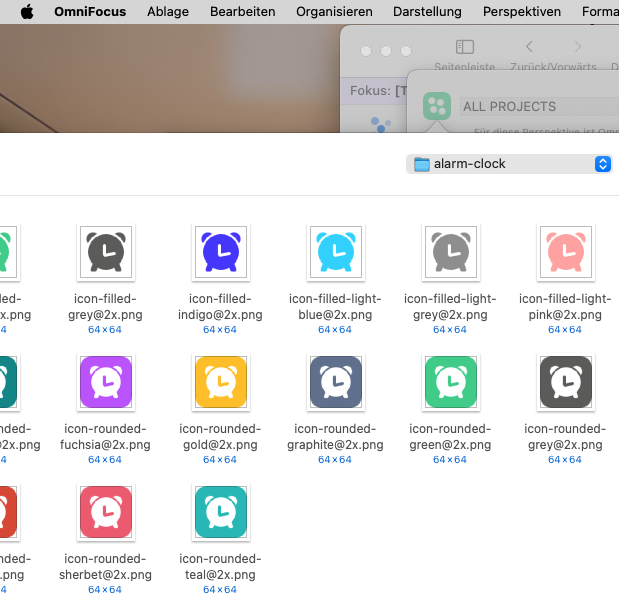
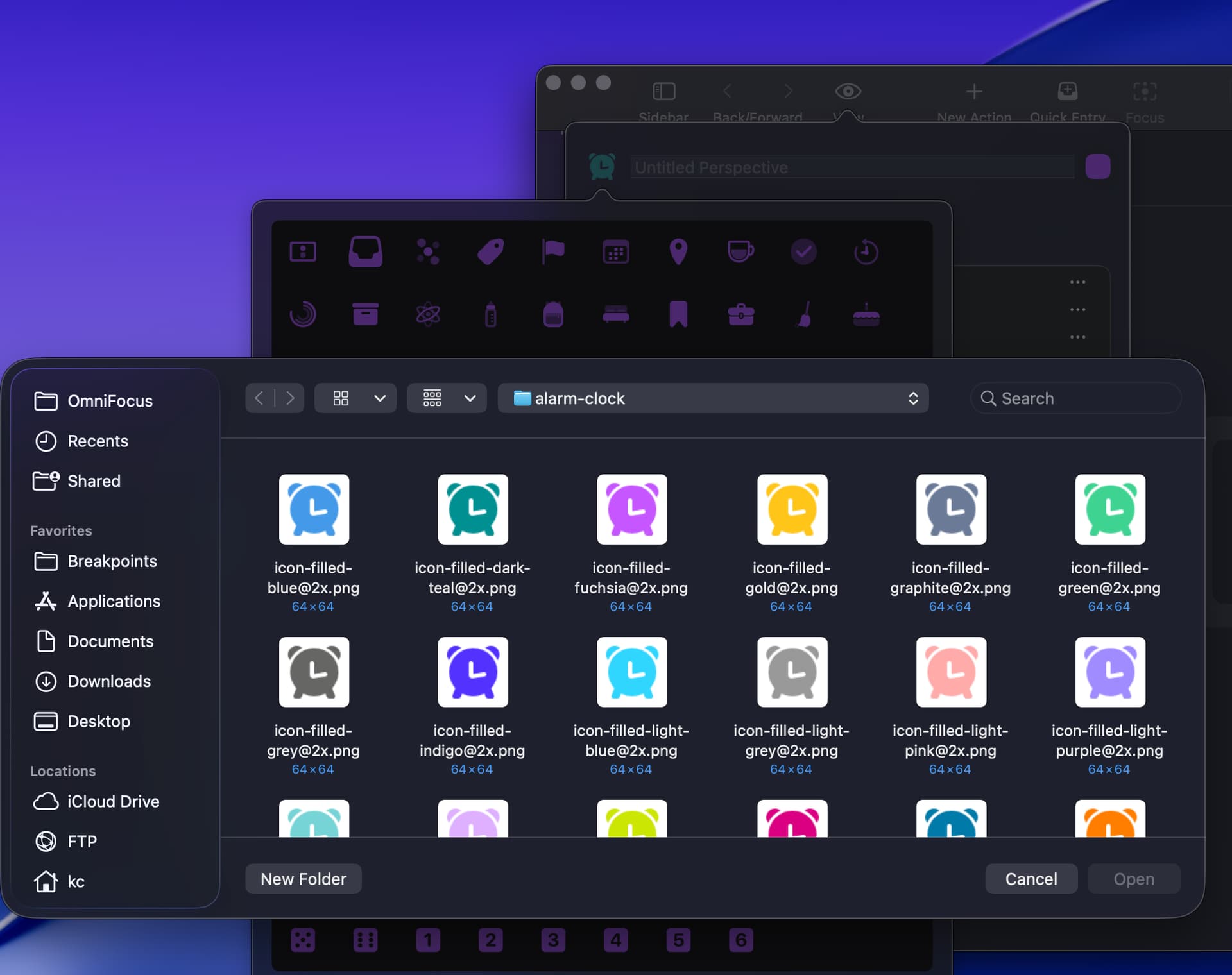
In version 4.7, there is now a problem when assigning a third-party perspective icon. I use Josh Hughes’ rounded style templates (https://omnifocusicons.josh-hughes.com) for my various perspectives. They are simply more appealing and clearer, especially in the perspective list column, which has been reduced in size since version 4.
Since version 4.7, when opening the window for selecting a third-party designer icon, the selection-window is generally moved so far to the left that you cannot access the mac-folders containing the respective icons. It would be nice if the window that opens for selection remained visible on the left edge of the display, i.e., the left edge of the selection window = the left edge of the Omnifocus frame (and not outside it). Thank you.
In the popup window, click the icon to the left of the perspective name, e.g.:
In the popup with OF icons that appears, click the “Custom” button:
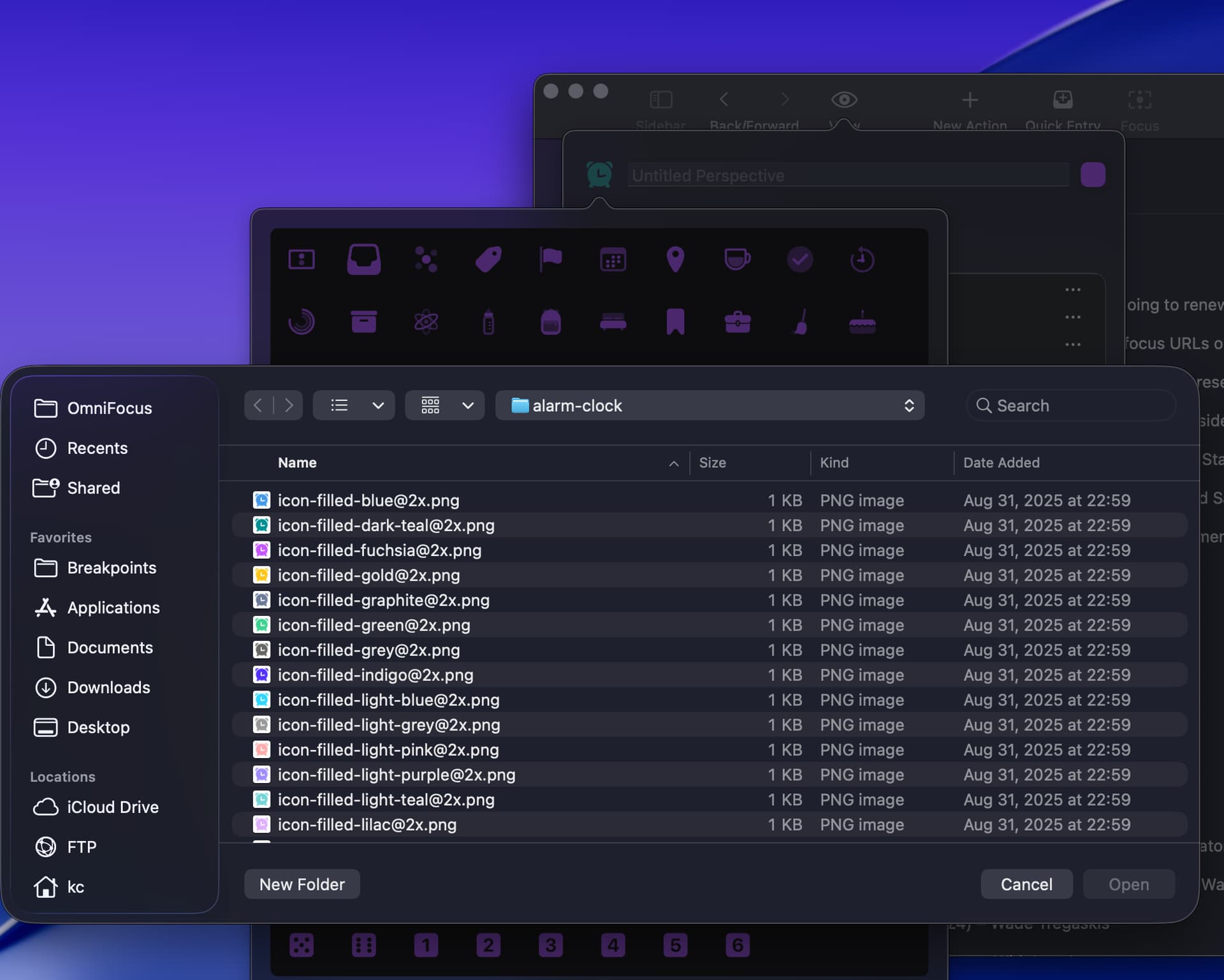
That opens a standard MacOS file picker dialog centered above the topmost popup (item 3 above). If that is off-screen, then MacOS should automatically move it on-screen I believe.
Agreed Josh Hughes’ icons are still the best and I wish OF would just offer them in their icon picker. Personally, I don’t see any icon in the original OF list that I’d like to use.
First of all: I am a long-time user of Omnifocus (since version 1) and have a 27-year career as a software developer behind me.
The problem with the selection window when accessing the icons template only started with the last Omnifocus update. The positioning of the OS selection window works fine with all other apps on my Mac. Only with Omnifocus does it no longer work properly.
When I click on the perspective icon and open the selection window, the Omnifocus window moves to the right!!! The selection window opens, but depending on the size when I last accessed it, I have to minimize the window and then I can hardly see all the icons in the selected folder. It is not possible to access the column with my favorite folders, hard drives, etc. It would be nice to fix this “small bug.” The fact that this bug still exists is probably because very few users use “foreign” icons. Access to the Omnifocus icons is possible without any problems.
Thanks Ken, for the quick reply.
I solved the problem myself. The editing form for a selected perspective is aligned horizontally (center of the editing window) with the position of the eye icon in the toolbar. If you then click on the previous icon, the icon selection window opens with its center aligned with the icon to be changed.
I suddenly noticed that, apart from the eye icon, there were no more icons in the toolbar of the Omnifocus version on my Mac, and the eye icon had moved far to the left. After I had reinserted all the icons in the toolbar and positioned the eye icon in the middle of the toolbar, everything worked perfectly again. I don’t understand why all the other icons disappeared from the toolbar 😩. Strange, because I had used the mark as nreviewed icon during the review just a short time ago.
Anyway, everything is working again now - Sorry Ken for taking up your time.
No worries! I’m still puzzled as to why the toolbar layout was constraining the width of the system’s Open dialog, but I’m glad you were able to find a solution and browse your folders of custom icons again!
Could it be that last time you used it to pick a new icon, you opened the system file picker from within OF on a large screen and expanded the window so you could see more icons and now you were on a small (laptop) screen? Most if not all apps remember the size of the file picker dialog and yes, it should auto-adjust to the screen.
Anyway, just throwing this out there. You already solved your issue.