First Unavailable

The attached Omni Automation plugin was developed to address the issue described in Perspective to show Waiting items .

first-unavailable-tag-clear.omnifocusjs (906 Bytes)

first-unavailable-tag.omnifocusjs (2.8 KB)

The script creates a new “First Unavailable” tag and tags every “first unavailable” task with it. An accompanying script can be used to clear the “First Unavailable” tag from every task.

A task is considered first unavailable iff:

  • it is the first blocked task in the corresponding sequential project, and no available task precedes it;
  • It is the first blocked task in the corresponding parallel project;
  • it is a blocked task in a single-actions project.

The definition mirrors OmniFocus’s “First Available” tasks.

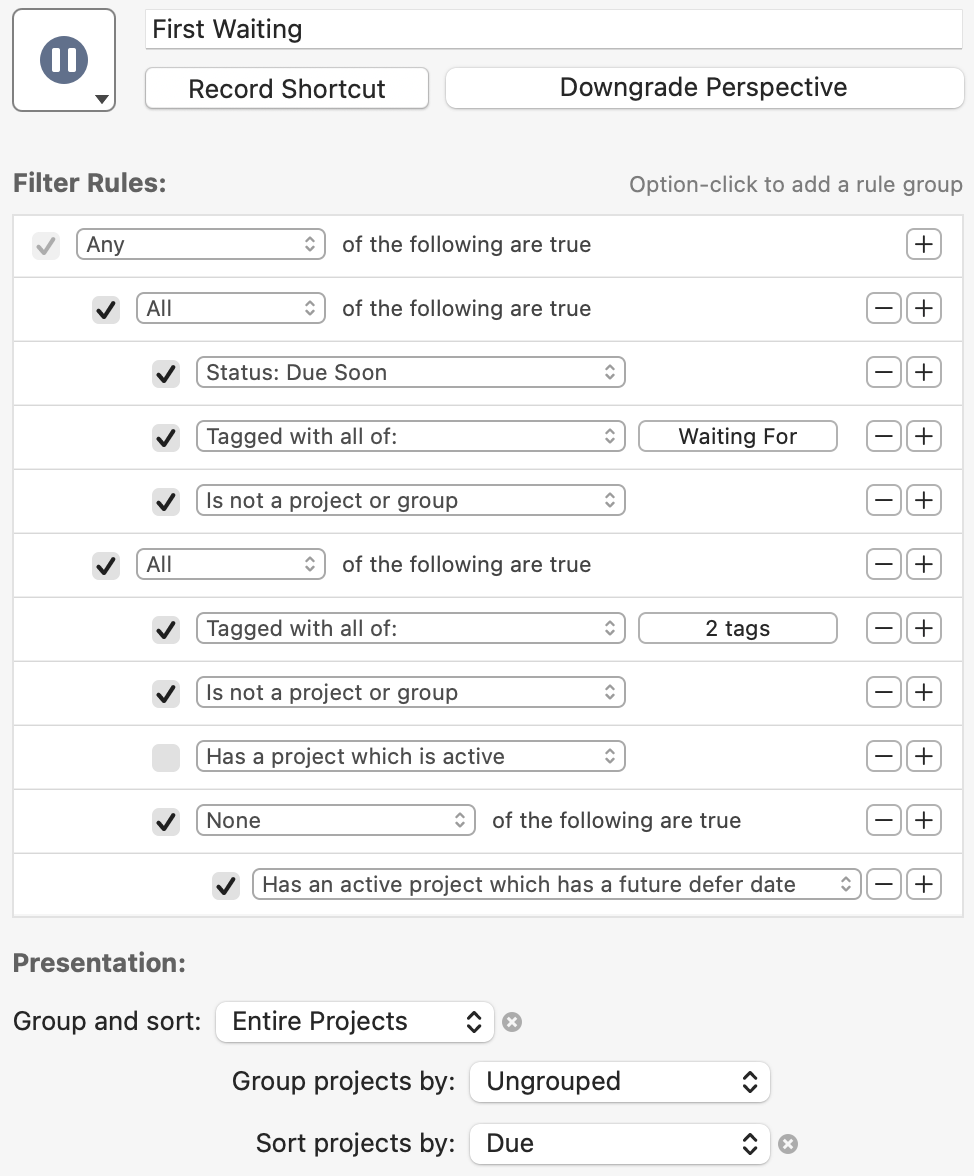
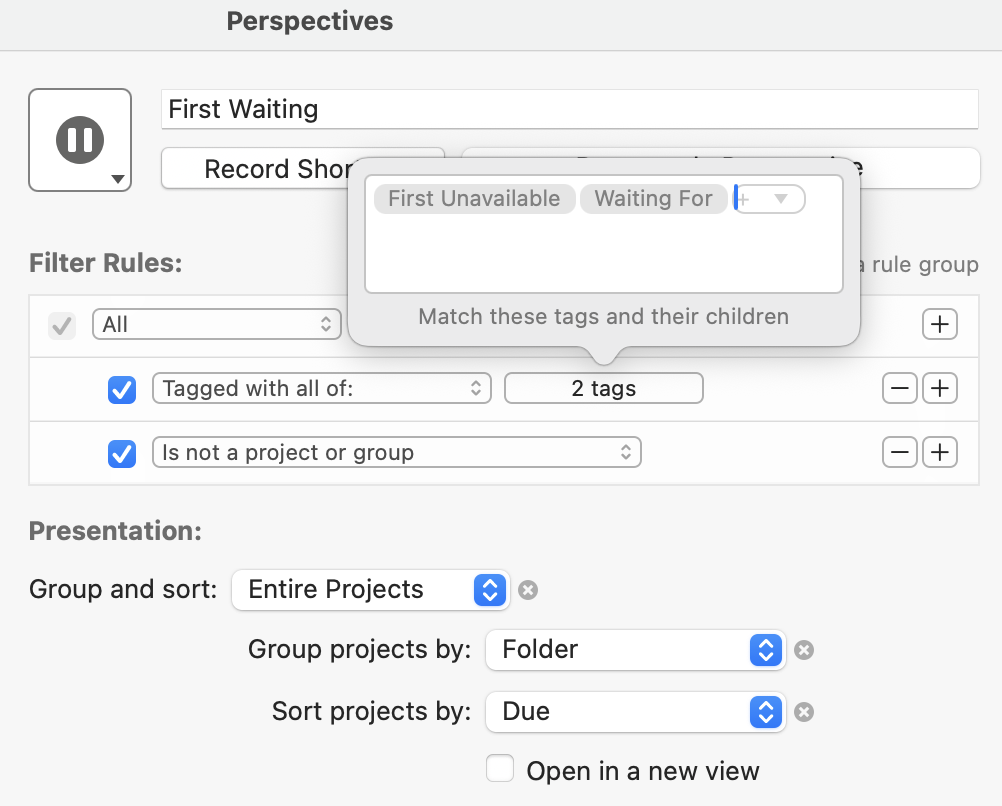
Once you have tagged first unavailable tasks, you may define perspectives to filter them. For example, you may define a “First Waiting” perspective that shows only the first waiting for tasks for each project—something that you cannot do with perspectives alone (read the linked thread above for details):
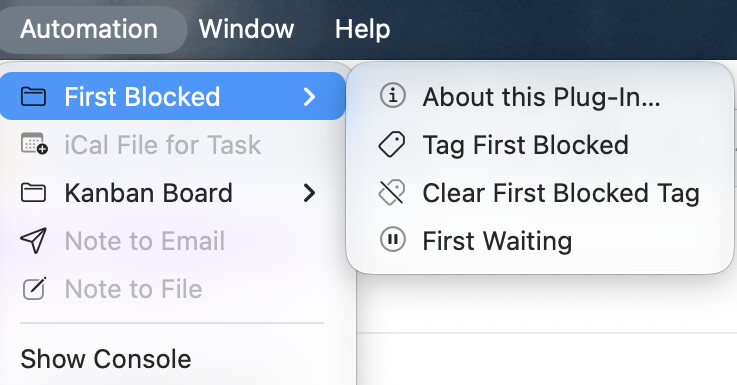
I have expanded the idea to take into account arbitrarily nested task groups (which was less trivial than I thought), and I have consolidated the scripts into a script bundle, now called First Blocked:

of-first-blocked.omnifocusjs.zip (14.5 KB) (v0.0.2, 2026-10-17)

First Waiting.ofocus-perspective.zip (3.3 KB)

I have also added a convenient “First Waiting” script to the bundle, which refreshes the tags for the first blocked tasks and opens a perspective called First Waiting, showing, well, the first waiting-for tasks, rather than the remaining waiting-for tasks. The perspective has a condition to filter tasks tagged with both First Blocked and Waiting For. Adapt to your needs.

Note: The First Blocked tag may be dropped to hide it from view: the scripts will keep working.

Just to be clear: the scripts only add and remove a tag called First Blocked (the name can be changed in UtilitiesLib.js: right-click on of-first-blocked.omnifocusjs in the Finder and choose Show Package Contents to see the plugin’s content). So, just delete the plugin and the tag to remove any trace of this plugin if you don’t need it any more.

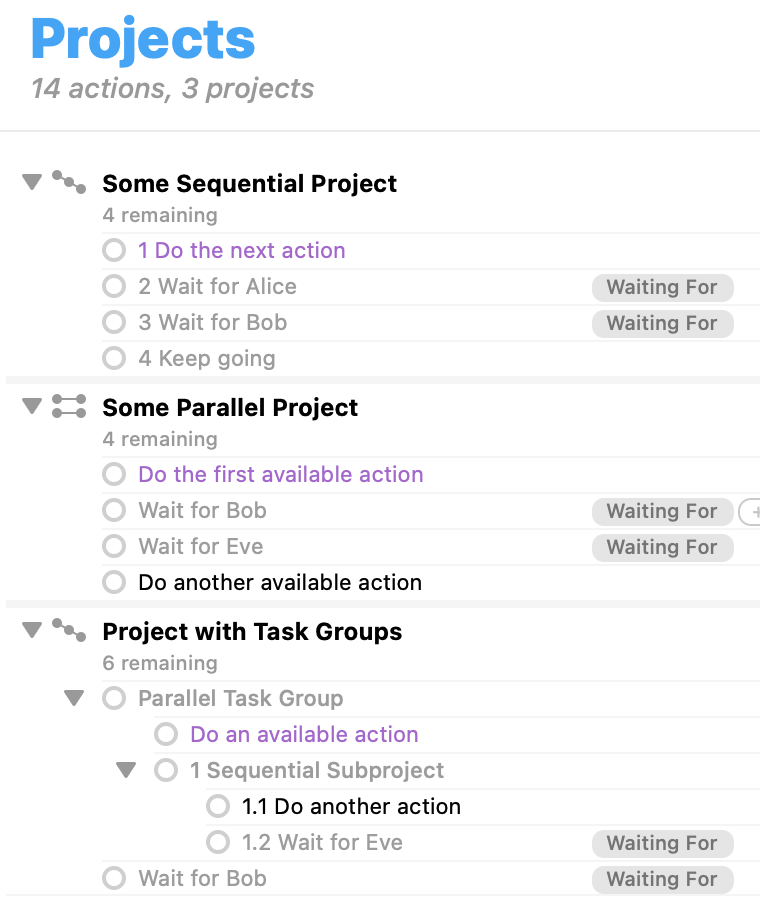
What difference does this plugin do? Consider these projects, where all remaining tasks are shown:

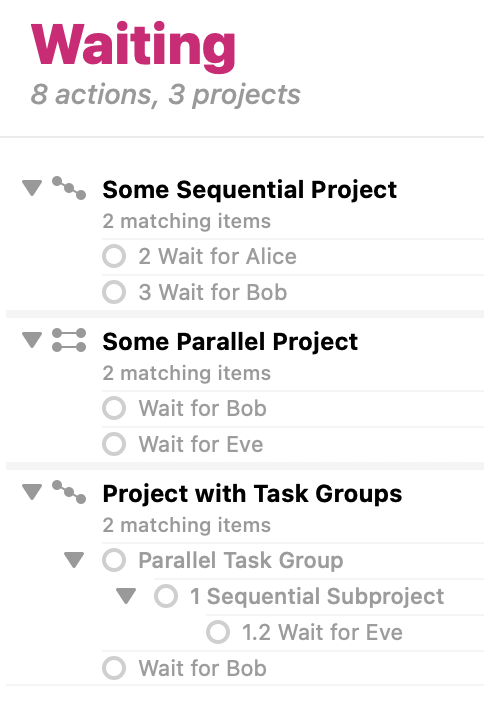
This is a standard “Waiting” perspective (showing remaining items tagged with Waiting For):

Note that both waiting tasks for the first sequential project appear in the perspective even if they are blocked by another action. Similarly, the waiting tasks in the project with task groups are blocked sequentially, yet they appear in this perspective. And all waiting tasks of the parallel project are there as well.

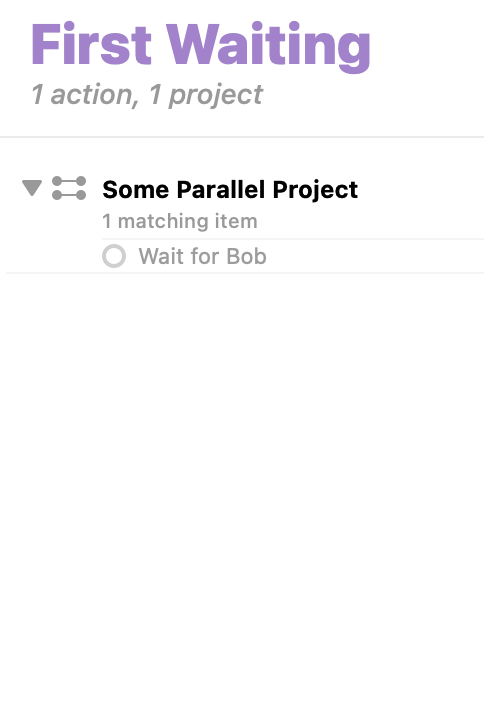
This is what the First Waiting perspective shows instead:

Much cleaner!

You may argue that since the shown project is parallel, “Wait for Eve” should be there, too. The way it is currently done mirrors OmniFocus’s First Available filter, which shows only the first available actions even for parallel projects. But you are free to modify the script as you like!